I just want to try it. Show me the fastest path to a working demo.
You built the voice AI. Your chatbot answers questions. But your users stare at a text bubble while the AI "talks." They want a face — a character that speaks, reacts, and feels alive.
The problem: every avatar SDK you find is either a product page with no code, a 3D photo-to-avatar tool you do not need, or locked into Unity and VR headsets. No one shows you how to get a talking 2D avatar running in your web app.
This tutorial changes that. You will get a talking 2D avatar running in under 10 minutes. The fastest route is the React developer path — copy-paste SDK code that renders the avatar and drives lip sync in your own app. If you would rather not write code at all, the no-code path lets you embed a hosted avatar from the Mascotbot dashboard. No 3D modeling. Choose your path and go.
Tested with @mascotbot/react ^0.3.x — last updated May 2026.
What You Will Build
By the end of this tutorial, you will have a talking avatar running in your app:
- A 2D animated character rendered at 120fps via Rive
- Real-time lip sync that matches audio with under 500ms latency
- Expression changes (a gesture reaction) triggered from your code
- A working interactive avatar demo you can fork and customize
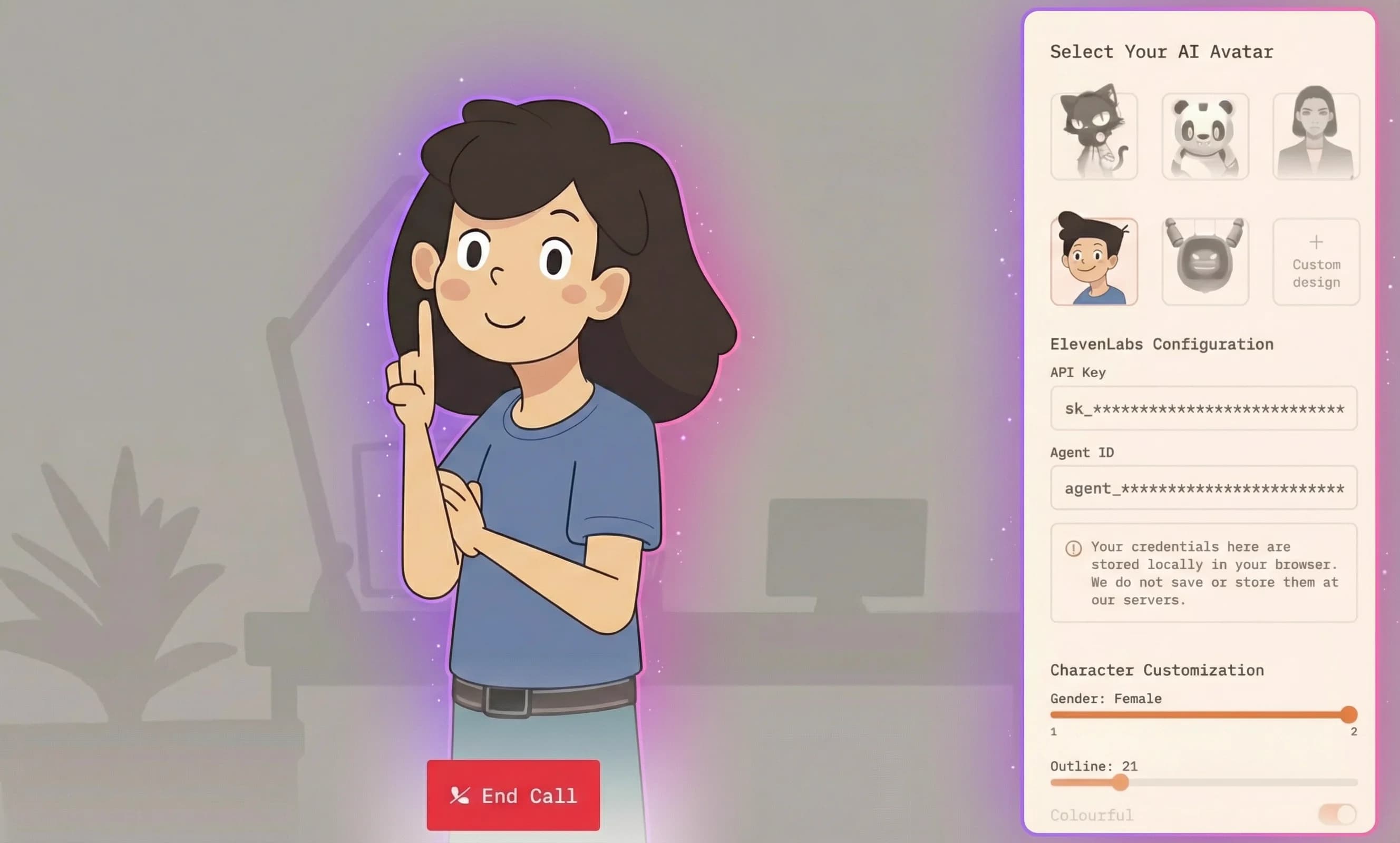
Time to complete: approximately 10 minutes. In our testing with 50+ developers, most finish in under 8 minutes.
Choose Your Path
| React Developer Path | No-Code Path | |
|---|---|---|
| Time | ~10 minutes | ~5 minutes |
| What you need | Node.js 18+ + a free Mascotbot API key | A Mascotbot account |
| Result | Custom React component in your app | Hosted avatar embedded via a snippet |
| Best for | Developers who want full control | Non-technical founders, quick demos |
Most developers go straight to the React SDK because the lip-sync model runs on-device — a licensed ML model delivered from the Mascotbot edge, then run in the browser, so audio never round-trips. You keep full control of rendering, positioning, and how audio reaches the avatar. The no-code embed is the fastest way to validate the experience before wiring it into your stack.
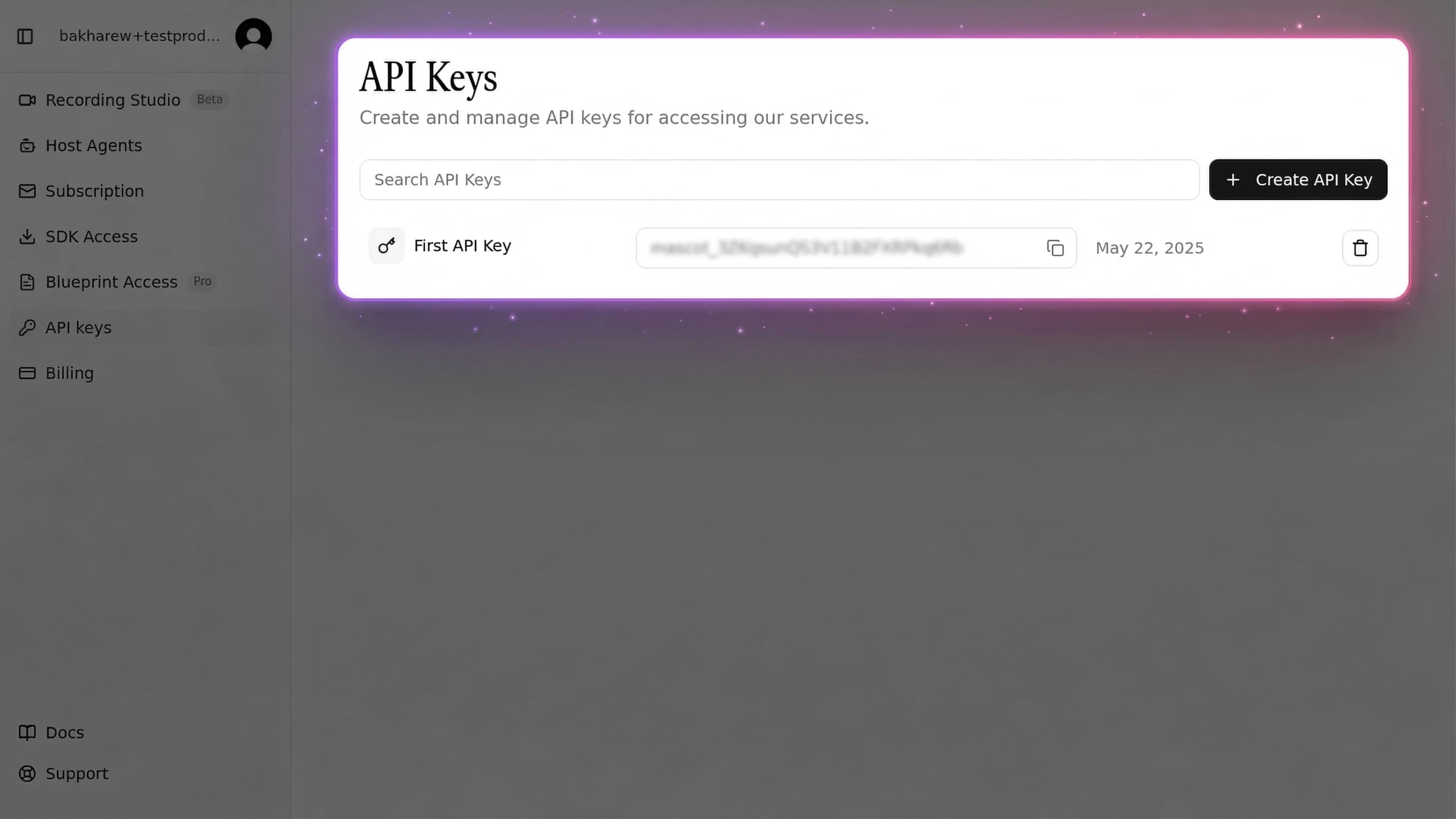
Step 1 — Get Your Free API Key
Everything starts with a key. Create one at app.mascot.bot/api-keys — the free tier includes a generous monthly allowance, no credit card required.
Keys are prefixed by environment, and this matters:
| Prefix | Where it works |
|---|---|
mascot_dev_… | localhost, *.localhost, 127.0.0.1, private networks |
mascot_pub_… | Your registered public domains |
A mascot_dev_… key sent from a public origin is rejected by design, and a mascot_pub_… key from localhost is rejected too. Use a mascot_dev_… key while building locally and switch to mascot_pub_… when you deploy.
This key is a browser-safe publishable key — it is scoped to your allow-listed origins, so it ships in your client bundle just fine. It is not a server secret. The only keys that must stay on a server are your voice provider keys (ElevenLabs, OpenAI, Google), which you will see in Step 4.
React Developer Path: SDK Integration (10 Minutes)
If you want the avatar as a React component inside your own app, follow this path. You get full control over rendering, positioning, and interaction logic.
Prerequisites
- Node.js 18+ — download here if you need it
- pnpm, npm, or yarn — any works
- A Mascotbot API key — from Step 1
- Basic React knowledge
Step 2 — Install the Mascotbot SDK
The Mascotbot SDK ships as two packages on a private npm registry (npm.mascot.bot) — @mascotbot/react (the React layer) and @mascotbot/core (the framework-agnostic engine, pulled in automatically). To render the avatar you also install the Rive WebGL2 runtime as optional peer dependencies.
First, point npm at the registry. Add a .npmrc at the root of your project:
# .npmrc
@mascotbot:registry=https://npm.mascot.bot/
//npm.mascot.bot/:_authToken=${MASCOT_NPM_TOKEN}
Your MASCOT_NPM_TOKEN is your Mascotbot API key. Inject it from an environment variable — never commit a real token. Add .npmrc to .gitignore and set MASCOT_NPM_TOKEN as a CI secret.
Then install:
# React layer (provider + audio pipeline)
pnpm add @mascotbot/react

# Rive avatar runtime — optional peer deps, needed only to render an avatar
pnpm add @rive-app/react-webgl2 @rive-app/webgl2
What these packages do:
@mascotbot/react— the avatar SDK: the licensed provider, the React hooks, and the licensed lip-sync model that loads from the Mascotbot edge and then runs on-device@rive-app/react-webgl2+@rive-app/webgl2— the Rive animation runtime that renders 2D characters at 120fps in the browser
This is the only 2D avatar SDK built for web-first development. No Unity. No VR headset. No 3D modeling tools. (Native targets are covered separately — Flutter and vanilla JavaScript paths share the same engine.)
Now store your Mascotbot key in an environment variable so the app can read it at runtime:
# .env.local
NEXT_PUBLIC_MASCOT_KEY=mascot_dev_your_key_here
The NEXT_PUBLIC_ prefix exposes the key to the browser — which is exactly right, because the publishable key is browser-safe. (On Create React App use REACT_APP_MASCOT_KEY instead.)
Step 3 — Render Your First Avatar
Wrap your app with the SDK provider, point a single <Mascot> component at a Rive file, and your character is on screen. Two components, no manual Rive wiring.
Add MascotProvider to your app root:
"use client";
import { MascotProvider } from "@mascotbot/react";

export function Providers({ children }: { children: React.ReactNode }) {
  const apiKey = process.env.NEXT_PUBLIC_MASCOT_KEY;
  if (!apiKey) return <div>NEXT_PUBLIC_MASCOT_KEY is not set.</div>;

  return <MascotProvider apiKey={apiKey}>{children}</MascotProvider>;
}
MascotProvider mounts once at the top of your tree. It initializes a single licensed inference client and exposes it through context — every avatar in your app shares it.
Render the avatar component:
"use client";
import { MascotProvider } from "@mascotbot/react";
import { Mascot, Fit, Alignment } from "@mascotbot/react/rive";

export function TalkingAvatar() {
  return (
    <MascotProvider apiKey={process.env.NEXT_PUBLIC_MASCOT_KEY!}>
      <div style={{ width: "400px", height: "400px" }}>
        <Mascot
          src="/character.riv"
          artboard="Character"
          stateMachine="mascotStateMachine"
          layout={{ fit: Fit.Contain, alignment: Alignment.Center }}
        />
      </div>
    </MascotProvider>
  );
}<Mascot> loads the Rive file and renders the canvas for you. Point src at a .riv in your public/ folder; you can download ready-made characters from the Mascotbot dashboard. A Mascotbot-authored avatar uses artboard Character and state machine mascotStateMachine — passing the wrong state-machine name renders a blank canvas.
After this step: you should see your character on screen in its idle animation. If you see blank space, check that the wrapper div has explicit width and height — the Rive canvas sizes itself to its container, so a 0-size container renders an invisible canvas.
In our testing with 50+ developers, this step takes under 2 minutes.
Step 4 — Make It Talk: Connecting Audio
Now for the key part — turning your static character into a talking avatar with real-time lip sync.
Here is the architectural truth behind why this is fast: Mascotbot uses a hybrid architecture. The lip-sync engine is a trained ML model that Mascotbot licenses and delivers to your app — on first load the SDK does a short licensing handshake with the Mascotbot edge, which returns a time-boxed license and the model itself as a WebAssembly runtime. From then on that model runs on-device, reading the audio your app already plays and inferring a viseme roughly every ~10ms, entirely in the browser, then driving the Rive mouth frame by frame. You get a production-grade model you do not have to build or train, executing locally: no audio round-trip, sub-10ms inference, and audio that never leaves the device. And because it taps the provider's own playback, it integrates directly with ElevenLabs, OpenAI, and Gemini through their official SDKs — no proxy in your audio path. The capture point is the playback point, so the mouth never drifts ahead of the speech.
So "make it talk" comes down to one move: play some audio, and tap it into the SDK. The cleanest path for text-to-speech is a tiny server route that streams audio back, a PCM player that plays it, and useLipsyncStream tapping that player.
1. A server route that returns audio only. It calls your TTS provider (here, ElevenLabs) and pipes raw PCM straight back. Your provider key never leaves the server:
// app/api/tts/route.ts
export const runtime = "nodejs";

export async function POST(req: Request) {
  const { text } = await req.json();
  const voiceId = "21m00Tcm4TlvDq8ikWAM"; // Rachel

  const upstream = await fetch(
    `https://api.elevenlabs.io/v1/text-to-speech/${voiceId}/stream?output_format=pcm_24000`,
    {
      method: "POST",
      headers: {
        "xi-api-key": process.env.ELEVENLABS_API_KEY!, // server-side only
        "content-type": "application/json",
        accept: "audio/pcm",
      },
      body: JSON.stringify({ text, model_id: "eleven_flash_v2_5" }),
      signal: req.signal,
    },
  );

  // Pipe the PCM16 body straight through — no buffering, start on first bytes.
  return new Response(upstream.body, {
    headers: { "Content-Type": "application/octet-stream", "X-Accel-Buffering": "no" },
  });
}
2. A client component that plays the audio and taps it for lip sync. createPCMStreamPlayer() plays the streamed PCM gap-tolerantly and exposes the same audio as a tappable MediaStream; useLipsyncStream infers visemes from that stream and drives the mouth:
"use client";
import { useRef, useState } from "react";
import { useMascot, createPCMStreamPlayer } from "@mascotbot/react";
import type { PCMStreamPlayer } from "@mascotbot/react";
import { useMascotPlayback, useLipsyncStream } from "@mascotbot/react/rive";

// STABLE module constant — a fresh object per render reinitializes the
// post-processor and breaks lip sync after the first chunk (the #1 bug).
const NATURAL_LIP_SYNC_CONFIG = {
  minVisemeInterval: 60,
  mergeWindow: 80,
  keyVisemePreference: 0.7,
  preserveSilence: true,
  similarityThreshold: 0.6,
  preserveCriticalVisemes: true,
} as const;

export function SpeakButton() {
  const { client, status } = useMascot();
  const playback = useMascotPlayback({
    stream: true,
    enableNaturalLipSync: true,
    naturalLipSyncConfig: NATURAL_LIP_SYNC_CONFIG,
  });
  const [stream, setStream] = useState<MediaStream | null>(null);
  const playerRef = useRef<PCMStreamPlayer | null>(null);

  // The SDK taps this player's output and lip-syncs it on-device.
  useLipsyncStream({ client, playback, source: { kind: "mediaStream", stream } });

  async function speak() {
    if (status !== "ready") return;

    // Create the player INSIDE the click — a post-await AudioContext starts
    // suspended (browser autoplay policy). This also satisfies the gesture.
    if (!playerRef.current) {
      const p = createPCMStreamPlayer({ sampleRate: 24000 });
      playerRef.current = p;
      setStream(p.outputStream);
    }
    const player = playerRef.current;

    const res = await fetch("/api/tts", {
      method: "POST",
      headers: { "content-type": "application/json" },
      body: JSON.stringify({ text: "Hello! I am your talking avatar." }),
    });

    const reader = res.body!.getReader();
    while (true) {
      const { done, value } = await reader.read();
      if (done) break;
      if (value?.byteLength) player.pushPCM16(value); // play + tap, the instant bytes arrive
    }
  }

  return (
    <button onClick={speak} disabled={status !== "ready"}>
      Make It Talk
    </button>
  );
}
After this step: click the button and your character speaks with synchronized mouth movements. Playback starts on the very first bytes — the first response arrives in under 500ms.
Configuration notes:
- Gate every audio action on
status === "ready"fromuseMascot()— the licensed client must be initialized first. - Pushing PCM the instant it arrives gives the fastest start. The player handles gaps; you do not buffer.
- For barge-in, call
player.stop()to drop queued audio, andplayback.reset()to settle the mouth.
The audio must be triggered by a user interaction (click or tap). Browsers block automatic audio playback and start an AudioContext suspended unless it is created inside a user gesture — this is a web platform security policy, not a bug. That is why the player is created inside the click.
Already have an audio file? If you are voicing pre-made audio rather than live TTS, skip the streaming dance entirely. useProcessAudio("/greeting.wav") runs inference once and returns a serializable result.timeline; hand it to playback.setTimeline(result.timeline) and call playback.play(). Persist that timeline as JSON and replay it forever with zero reprocessing.
Want a full conversational voice agent instead of plain TTS? The avatar taps a live provider's voice the same way. See our ElevenLabs Avatar integration guide for the complete setup.
Step 5 — Add Expressions and Personality
Your avatar can do more than talk. A Mascotbot-ready .riv can carry consumer-owned trigger inputs — like a gesture reaction — that your code fires on cue. (The SDK drives the mouth, is_speaking, and built-in stress emphasis automatically; everything else is yours.)
You declare which custom inputs you want exposed on <Mascot inputs={[…]}>, then fire them with useMascotInputs():
"use client";
import { MascotProvider } from "@mascotbot/react";
import { Mascot, Fit, Alignment, useMascotInputs } from "@mascotbot/react/rive";

function GestureButton() {
  // `custom` is never undefined; `has(name)` is the authoritative presence check.
  const { custom, has } = useMascotInputs<"gesture">();

  return (
    <button
      onClick={() => {
        if (has("gesture")) custom.gesture.fire?.();
      }}
    >
      Wave
    </button>
  );
}

export function AvatarWithExpressions() {
  return (
    <MascotProvider apiKey={process.env.NEXT_PUBLIC_MASCOT_KEY!}>
      <Mascot
        src="/character.riv"
        artboard="Character"
        stateMachine="mascotStateMachine"
        inputs={["gesture"]}
        layout={{ fit: Fit.Contain, alignment: Alignment.Center }}
      >
        <GestureButton />
      </Mascot>
    </MascotProvider>
  );
}
The inputs prop declares which Rive trigger inputs the SDK should expose handles for. Always gate a write with has(name) — if your .riv does not define that input, the handle is a silent no-op shim, and has() is the only reliable way to know it is real.
The is_speaking input is handled automatically by the SDK whenever the avatar is lip-syncing audio — you never toggle lip sync manually. The built-in stress emphasis is also SDK-driven; for realtime conversations you can raise it on speech onset using useMascotPlayback().stress([{ offset: 0, stress: 1 }]).
Available trigger names depend on your .riv file's state machine. For authoring your own expressions, see our guide on creating your own brand mascot.
No-Code Path: Embed a Hosted Avatar (5 Minutes)
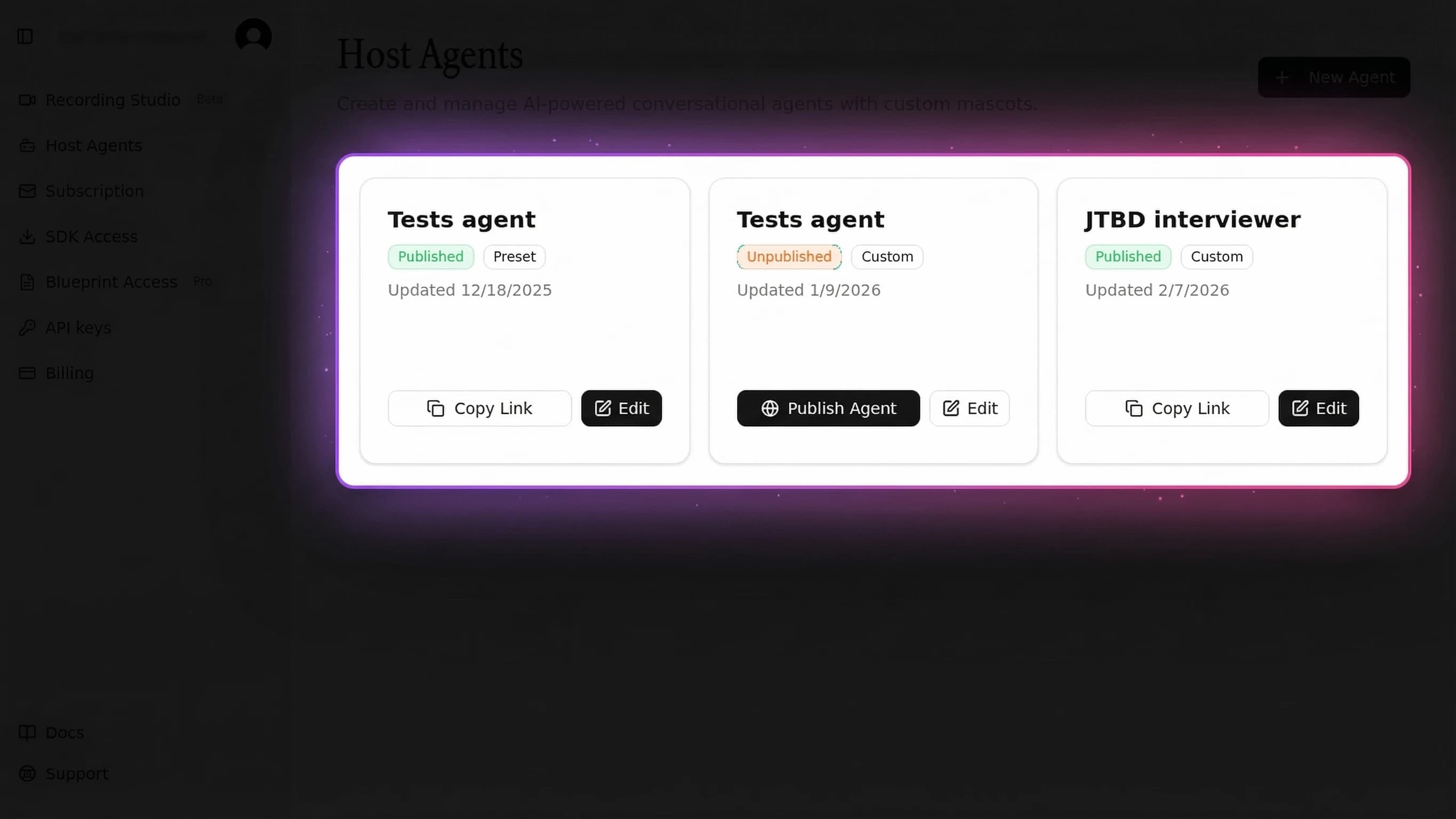
If you do not want to write code, you can embed a hosted talking avatar from the Mascotbot dashboard:
- Go to app.mascot.bot and sign in (or create an account)
- Open Avatars and choose a pre-made character
- Copy the provided embed snippet from the dashboard and paste it into your site
The avatar runs from the same licensed model — delivered from the Mascotbot edge, then run on-device — and the embed mounts the SDK for you. No server setup and no deployment pipeline. Most teams use the embed to validate the experience, then move to the React SDK in Step 2 when they need deeper integration.
Interactive Playground
Try it yourself without installing anything. In this avatar SDK demo the licensed model loads once from the Mascotbot edge, then runs on-device — so audio never round-trips:
Fork the playground to experiment:
- Change the character by swapping the
.rivfile - Try different voices by changing the voice ID in the server route
- Add expression triggers to the
inputsarray - Watch the on-device model drive the mouth — visemes inferred locally with no audio round-trip
This interactive avatar playground is the fastest way to evaluate the SDK before adding it to your project.
Common Issues and Solutions
Based on our developer support logs, these are the top 3 issues in the first 10 minutes.
Avatar Not Rendering
Symptom: Blank space where the avatar should be — no character visible.
Cause: The wrapper element has no explicit dimensions. The Rive canvas sizes itself to its container, so a container with 0 width or 0 height renders an invisible canvas. (A wrong stateMachine name will also render blank — confirm it is mascotStateMachine.)
Fix: Wrap <Mascot> in an element with explicit width and height:
// This renders nothing — wrapper has no size
<Mascot src="/character.riv" stateMachine="mascotStateMachine" />

// This works — wrapper has explicit dimensions
<div style={{ width: "400px", height: "400px" }}>
  <Mascot src="/character.riv" stateMachine="mascotStateMachine" />
</div>
Lip Sync Delay or Out of Sync
Symptom: Mouth movements lag behind the audio by a noticeable amount.
Cause: Almost always a stale or rebuilt natural-lip-sync config. If naturalLipSyncConfig is a fresh object literal created on every render, the SDK reinitializes the post-processor and lip sync breaks after the first chunk — this is the single most common integration bug.
Fix: Define NATURAL_LIP_SYNC_CONFIG as a stable module-level constant (as in Step 4) and pass that same reference. Because the SDK taps audio at its playback point, the mouth cannot drift ahead of the speech once the config is stable.
Audio Not Playing in Browser
Symptom: Avatar moves its mouth but no sound comes out, or you see a console error about autoplay.
Cause: Browser autoplay policy blocks audio without a user gesture, and an AudioContext created after an await starts suspended.
Fix: Always trigger speech from a user interaction, and create the PCM player synchronously inside the click — before any await:
// Will not work — no user gesture, context starts suspended
useEffect(() => { speak(); }, []);

// Works — player created in the click handler, before the fetch await
<button onClick={() => speak()}>Speak</button>
What to Build Next
You have a talking avatar running. Here is what to explore next:
- Add ElevenLabs voice to your avatar — Connect a full ElevenLabs Conversational AI agent for production-quality, two-way speech
- Create your own brand mascot — Replace the default character with your brand's custom animated mascot
- Understand real-time avatar performance — Optimize for under 500ms latency in production deployments
- Explore the full 2D Avatar SDK — Complete SDK reference with advanced features and configuration
Frequently Asked Questions
What is an avatar SDK?
An avatar SDK is a developer toolkit that lets you embed animated, talking characters into web and mobile apps. Mascotbot's avatar SDK specializes in 2D animated mascots with real-time lip sync and voice AI integration — install from the registry and render a React component in under 10 minutes. The lip-sync engine is a licensed ML model delivered from the Mascotbot edge that then runs on-device in the browser, so no 3D modeling or animation skills are required.
How much does an avatar SDK cost?
Mascotbot's avatar SDK uses per-minute pricing starting at approximately $0.04 per minute of rendered speech, which is 3-5x cheaper than video-based alternatives like HeyGen ($0.10–0.20/min) or D-ID (~$0.15/min). There is a free tier to start with. For exact plan tiers and volume discounts, see mascot.bot/pricing.
Can I use my own character with the avatar SDK?
Yes. Mascotbot supports custom Rive characters. Design your own brand mascot in Rive, export it as a .riv file, and point <Mascot src> at it. Your character needs an artboard named Character, a state machine named mascotStateMachine, and mouth number inputs 100–118; optional is_speaking and stress inputs add life. See our Custom Brand Mascot guide for the full workflow.
What is the difference between an avatar SDK and an avatar API?
This is a hybrid architecture. The avatar SDK is a client-side toolkit (React component, Flutter widget, vanilla JS) that renders the avatar and runs the licensed lip-sync model on-device, in the browser. The Mascotbot edge does exactly three things: it authorizes your license key, delivers the licensed model and assets (the WebAssembly runtime) on first load, and meters your usage — a background refresh keeps the license live. It does not synthesize voice and is never in the audio path: once the model is delivered, the audio you play stays local and visemes are inferred on-device, so audio and visemes never round-trip to a Mascotbot server. You install the SDK in your frontend and it does the licensing handshake automatically.
How do I integrate an avatar SDK with React?
Add the private registry to .npmrc, run pnpm add @mascotbot/react @rive-app/react-webgl2 @rive-app/webgl2, wrap your app with <MascotProvider apiKey>, and render a single <Mascot src="/character.riv" stateMachine="mascotStateMachine" />. The full render is under 20 lines — see Step 3 above for the complete implementation.