I need accurate lip sync that matches the audio perfectly.
Your AI speaks fluently, but its face is frozen. Users notice the disconnect immediately -- voice without synchronized mouth movement feels uncanny and breaks immersion. Lip sync AI technology solves this gap, but most solutions focus on pre-rendered video, not real-time 2D characters.
A lip sync API solves this by converting audio into lip sync animation in real time. The pipeline works in three stages: audio analysis extracts speech sounds, a mapping engine translates those sounds into mouth positions called visemes, and an animation engine renders them on your character at 60-120fps. The Mascotbot SDK uses a hybrid architecture: the lip-sync engine is a trained ML model that Mascotbot licenses and delivers to your app, then runs on-device in the browser. So once the model loads, all three stages execute locally -- no audio round-trip, and no server sits in the audio path.
This guide explains exactly how that pipeline works and walks you through implementing real-time lip sync for 2D animated characters. You will go from zero to a working lip-synced avatar in about 10 minutes, using React, the Mascotbot SDK, and Rive animation. Updated for May 2026 with @mascotbot/react ^0.3.x.
The Problem -- Why Static Faces Break Voice AI
Every major lip sync AI service today -- HeyGen, Synthesia, VEED, sync.so -- focuses on one thing: dubbing pre-recorded video. They take a script, process it for seconds or minutes, and produce a photorealistic talking-head video. None of them work for live, streaming conversations with 2D animated characters. No lip sync SDK exists for this use case.
I tried HeyGen but there's like a 3-second delay. For live events, that's death.
If you are building a voice-powered chatbot, a live event kiosk, or an interactive educational tool, pre-rendered lip sync is not an option. You need mouth movement that reacts to audio in milliseconds, not seconds.
And if your character is a 2D brand mascot -- not a photorealistic human -- the gap is even wider. There is no off-the-shelf audio to lip sync solution for Rive, Spine, or Lottie characters. The entire SERP for "lip sync API" is product pages for video dubbing services, with zero technical tutorials and zero code examples for real-time lip sync animation.
How Lip Sync Works -- The Audio-to-Animation Pipeline
A lip sync API converts audio to lip sync animation through a three-stage pipeline. First, audio analysis reads the waveform from a microphone, a pre-made audio asset, or the voice an AI provider is already playing. Then, an inference engine translates the sound into one of a small set of standard mouth positions called visemes. Finally, the lip sync SDK animation engine renders these shapes on the character at 60-120fps, creating the illusion of natural speech.
Mascotbot uses a hybrid architecture for this. The lip-sync engine is a trained ML model that Mascotbot licenses and delivers to your app: on first load, the SDK does a short licensing handshake with the Mascotbot edge, which returns a time-boxed license and the model itself as a WebAssembly runtime. From then on that model runs on-device -- reading the audio your app already plays and inferring a viseme every ~10ms, entirely in the browser. You get a production-grade model you don't have to build or train, executing locally: no audio round-trip, sub-10ms latency, and audio that never leaves the device. Because the capture point is the playback point, the mouth cannot drift ahead of the voice.
How do you do 120fps lip sync on web?
Here is how each stage works.
Stage 1: Audio Analysis
Raw audio arrives as a PCM buffer. There are three common sources: the user's microphone, a pre-rendered TTS clip you already have, or the audio stream a conversational provider (ElevenLabs, OpenAI Realtime, Gemini Live) is playing back. The SDK reads the samples, resamples them to 16 kHz mono, and feeds them to its inference engine in short windows.
Some cloud providers expose phonetic data directly. Microsoft Azure's Speech SDK fires viseme events alongside TTS audio with audio-offset timestamps in 100-nanosecond precision, and Amazon Polly does something similar. But Google confirmed that "the Gemini Multimodal Live API currently streams PCM audio and text but does not provide viseme or blendshape metadata for animation," and OpenAI's Realtime API does not expose viseme data either.
The Mascotbot SDK sidesteps that inconsistency entirely: instead of asking each provider for visemes, the licensed model derives them from the audio itself, in the browser. Whatever produces sound -- mic, TTS asset, or a tapped provider stream -- the SDK infers visemes locally. The only thing that crosses the network is the one-time licensing handshake that delivers the model and meters usage; the audio and the visemes never round-trip to a Mascotbot server.
Latency for this stage: ~5ms for audio capture; inference runs per 25ms window, locally.
Stage 2: Phoneme-to-Viseme Mapping
Once the waveform is analyzed, it is translated into mouth shapes. This is where viseme mapping comes in.
A phoneme is a unit of sound. A viseme is a mouth position. The mapping between them is many-to-one: multiple phonemes produce the same mouth shape. For example, /b/, /p/, and /m/ all require closed lips -- they look identical to a viewer even though they sound different. The standard English phoneme inventory of ~44 sounds collapses to a much smaller set of distinct mouth shapes.
According to Microsoft's Azure documentation: "There's no one-to-one correspondence between visemes and phonemes. Often, several phonemes correspond to a single viseme."
With the Mascotbot SDK this mapping is handled by the licensed inference engine -- a deliberate black box: audio goes in, a stream of viseme ids comes out, one per 10ms frame. You never touch the internal model -- you consume the timeline it produces.
Latency for this stage: runs inside the per-window inference above; no separate network hop.
Stage 3: Animation Rendering
Viseme ids arrive with timing data. The animation engine -- in our case, Rive running on WebGL2 -- receives each viseme and updates the character's mouth position accordingly.
Rive uses a state machine to interpolate smoothly between viseme positions. Instead of snapping from one mouth shape to the next, the state machine calculates weighted transitions using easing curves. At 120fps, this produces fluid motion that far exceeds the human eye's ability to detect discrete steps.
The SDK writes only the inputs it owns -- the mouth shapes, plus optional is_speaking and stress inputs. Everything else on the .riv file (eyes, gestures, brand colors) stays yours to drive.
Latency for this stage: ~8ms per frame at 120fps.
Because there is no server in the audio path, total local overhead -- capture, inference, render -- stays well under the 100ms threshold where humans perceive audio-visual desync. The only meaningful latency in a live conversation is the voice provider's own response time, which the avatar simply rides on top of.
The 16 Viseme Positions -- A Visual Guide
What's viseme mapping? I've heard the term.
Viseme mapping is the process of translating phonemes (units of speech sound) into visemes (visual mouth positions). A viseme is the shape a mouth makes for a group of sounds, not the sound itself. For example, the phonemes /b/, /p/, and /m/ all map to the same closed-lips viseme because they produce identical mouth shapes.
Conceptually, a handful of distinct mouth shapes covers the vast majority of speech. Meta's Oculus LipSync defines 15 visemes selected "to give the maximum range of lip movement" across all languages; Microsoft Azure defines 22 for finer granularity. In practice, somewhere in that 15-22 range is the effective sweet spot -- fewer loses expressiveness, more adds complexity without perceptible improvement.
A few mouth shapes carry most of the visible signal. These are the ones a viewer notices when they are wrong:
| Mouth Shape | What it looks like | Example Sounds | Example Words |
|---|---|---|---|
| Neutral / rest | Closed, relaxed | Silence | Pauses between words |
| Lips pressed | Lips fully closed | /p/, /b/, /m/ | "pat," "bat," "mat" |
| Teeth on lip | Top teeth on lower lip | /f/, /v/ | "fan," "van" |
| Wide open | Jaw dropped, mouth wide | /a/, /ae/ | "father," "cat" |
| Rounded | Lips pursed into an O | /o/ | "go" |
| Teeth together | Lips parted, teeth close | /s/, /z/ | "see," "zoo" |
You do not map these by hand. The Mascotbot SDK's engine emits a viseme id per frame and the ready-made mascots already bind those ids to the right mouth shapes in Rive. The table above is conceptual background -- it explains why lip sync reads as natural, not a public API you wire up. The "bilabial" shapes (the lips-pressed /p/, /b/, /m/ group) are the ones the engine protects most aggressively, because a missed mouth-close is the single most obvious lip sync glitch.
How the SDK Handles Audio -- One Pipeline, Three Sources
There is no REST endpoint to call and no viseme stream to subscribe to. You give the SDK audio in one of three ways, and it produces lip sync on-device. The right path depends on where your audio comes from.
| Your audio source | SDK piece | What it does |
|---|---|---|
| A pre-made audio file (greeting, voice-over, recording) | useProcessAudio(url) | Fetches, decodes, runs inference once → a reusable VisemeTimeline. |
| A streaming TTS provider (you generate speech server-side) | createPCMStreamPlayer() + useLipsyncStream | Plays raw PCM the server returns and taps it for lip sync. |
| A live conversational AI (ElevenLabs, OpenAI Realtime, Gemini Live) | createElementTap() or createPCMStreamPlayer() + useLipsyncStream | Taps the assistant's voice as a MediaStream and lip-syncs it. |
Two things are true across all three:
- The audio is processed on-device. Whether it is a file you bundled, a PCM stream from your own TTS route, or a tapped provider voice, the licensed model infers visemes locally in the browser. The audio and the viseme data never round-trip to a Mascotbot server -- the only network call is the one-time licensing handshake that delivers the model and meters usage.
- For conversational providers, you keep your own provider SDK. Mascotbot does not proxy ElevenLabs, OpenAI, or Gemini -- because the model taps the provider's own playback on-device, it integrates directly with each provider through their official SDKs. Your server mints a short-lived provider credential (an ElevenLabs signed URL, an OpenAI client secret, or a Gemini ephemeral token); the provider plays its own audio; the SDK taps that playback. The Mascotbot key itself is a browser-safe publishable key on
<MascotProvider apiKey>-- only the provider key stays server-side.
The "self-plays vs. hands you raw PCM" distinction decides whether you tap an element or play the PCM yourself:
| Provider | Plays audio itself? | How you get the stream |
|---|---|---|
| ElevenLabs Conversational AI | Yes (internal worklet → <audio>) | createElementTap() |
| OpenAI Realtime (WebRTC) | Yes (into an <audio> you supply) | createElementTap() |
| Gemini Live | No (raw base64 PCM16 @ 24 kHz) | createPCMStreamPlayer({ sampleRate: 24000 }) |
| Your own streaming TTS route | No (raw PCM16 you fetch) | createPCMStreamPlayer() |
Whichever path you use, the final wiring is identical -- one hook takes the MediaStream:
useLipsyncStream({ client, playback, source: { kind: "mediaStream", stream } });Real-Time vs. Pre-Rendered Lip Sync -- When Each Approach Wins
Under 0.5s latency -- that's our requirement.
Not every use case needs a real-time lip sync API. Here is when each lip sync AI approach makes sense:
| Aspect | Real-Time (Mascotbot, D-ID Agents) | Pre-Rendered (sync.so, HeyGen, VEED) |
|---|---|---|
| Latency | sub-10ms local overhead | 3-30 seconds |
| Use case | Live conversations, chatbots, kiosks | Marketing videos, training content |
| Character type | 2D animated (Rive, Spine) | Photorealistic video |
| Frame rate | 60-120fps | 24-30fps |
| Interactivity | Bidirectional (user speaks back) | One-way (pre-recorded) |
| Visual fidelity | Good (state machine) | Excellent (neural rendering) |
For pre-recorded marketing videos, tools like sync.so or VEED.io produce higher visual quality because they can spend seconds per frame on neural rendering. But for anything interactive -- chatbots, live event kiosks, voice agents, educational tools -- real-time lip sync is the only viable approach.
Tutorial -- Implement Real-Time Lip Sync in 10 Minutes
In our testing with 50+ developers, 90% had a working lip sync integration within 10 minutes using these steps. You need Node.js 18.17+, a Mascotbot publishable key (app.mascot.bot), and basic React knowledge.
Step 1: Install the Mascotbot SDK
The SDK installs from Mascotbot's private npm registry. Add an .npmrc to your project root pointing the @mascotbot scope at that registry (keep the token out of git -- inject it from a CI secret):
# .npmrc
@mascotbot:registry=https://npm.mascot.bot/
//npm.mascot.bot/:_authToken=${MASCOT_NPM_TOKEN}
Then install the SDK plus the Rive WebGL2 peer dependencies (only needed to render an avatar):
# Core engine + React layer
pnpm add @mascotbot/react

# Rive WebGL2 renderer (optional peer deps — install to show an avatar)
pnpm add @rive-app/react-webgl2 @rive-app/webgl2
The publishable key (mascot_pub_… in production, mascot_dev_… on localhost) is browser-safe -- it is scoped to your allow-listed origins, so it is fine to ship in the client bundle. Expose it as NEXT_PUBLIC_MASCOT_KEY and mount one provider at the top of your app:
"use client";

import { MascotProvider } from "@mascotbot/react";

export function Providers({ children }: { children: React.ReactNode }) {
  const apiKey = process.env.NEXT_PUBLIC_MASCOT_KEY;
  if (!apiKey) return <div>NEXT_PUBLIC_MASCOT_KEY is not set</div>;
  return <MascotProvider apiKey={apiKey}>{children}</MascotProvider>;
}<MascotProvider> initializes a single licensed inference client and exposes it through context. Render your avatar with <Mascot src>:
"use client";

import { Mascot, MascotRive, Fit, Alignment } from "@mascotbot/react/rive";

export function Avatar() {
  return (
    <Mascot
      src="/mascot.riv"
      layout={{ fit: Fit.Contain, alignment: Alignment.BottomCenter }}
    >
      <MascotRive />
    </Mascot>
  );
}<Mascot src> loads the Rive file and renders the canvas; <MascotRive /> is the escape hatch you place inside its children when you want a custom layout. useMascot() gives you { client, status, error } -- gate all audio work on status === "ready".
Step 2: Connect an Audio Source
The simplest path needs no backend at all: drive the avatar from a pre-made audio asset. useProcessAudio(url) fetches the file, decodes it, resamples to 16 kHz, and runs inference once, producing a serializable VisemeTimeline. Persist that JSON and every later visit replays it with zero reprocessing:
"use client";

import { useRef } from "react";
import { useMascot, useProcessAudio, parseTimeline } from "@mascotbot/react";
import { useMascotPlayback } from "@mascotbot/react/rive";

const AUDIO_URL = "/audio/greeting.mp3";
const TIMELINE_KEY = "greeting.vtl";

export function OfflinePlayer() {
  const { status } = useMascot();

  // Only run inference when there is no cached timeline.
  const cached =
    typeof window !== "undefined" ? localStorage.getItem(TIMELINE_KEY) : null;
  const { result } = useProcessAudio(cached ? null : AUDIO_URL);

  const playback = useMascotPlayback({ enableNaturalLipSync: true });
  const audioRef = useRef<HTMLAudioElement>(null);

  function play() {
    if (status !== "ready") return;

    let timeline;
    if (cached) {
      // Replay path — validate persisted JSON, never JSON.parse alone.
      timeline = parseTimeline(JSON.parse(cached));
    } else if (result) {
      timeline = result.timeline;
      // Persist the artifact so the next visit skips inference entirely.
      localStorage.setItem(TIMELINE_KEY, JSON.stringify(timeline));
    } else {
      return;
    }

    playback.setTimeline(timeline);
    audioRef.current?.play().catch(() => {});
    playback.play();
  }

  return (
    <>
      <audio ref={audioRef} src={AUDIO_URL} playsInline onEnded={() => playback.reset()} />
      <button onClick={play} disabled={status !== "ready"}>Play</button>
    </>
  );
}result.timeline is a VisemeTimeline -- plain, versioned JSON you can store in localStorage, a database, or a CDN object. On replay, always run persisted JSON through parseTimeline (it validates the version/shape and throws on a mismatch) rather than JSON.parse alone.
Step 3: Enable Lip Sync (Live Audio)
For live audio -- a microphone or a streaming TTS provider -- use useLipsyncStream. Create the playback with stream: true and pass a MediaStream. Here is the streaming-TTS case: your server route returns raw PCM16, createPCMStreamPlayer plays it gap-tolerantly and exposes a tappable stream, and the SDK lip-syncs the same audio your speakers hear:
"use client";

import { useState } from "react";
import { useMascot, createPCMStreamPlayer } from "@mascotbot/react";
import type { PCMStreamPlayer } from "@mascotbot/react";
import { useMascotPlayback, useLipsyncStream } from "@mascotbot/react/rive";

// STABLE module constant — a fresh object every render reinitializes the
// post-processor and breaks lip sync after the first chunk (the #1 bug).
const NATURAL_LIP_SYNC_CONFIG = {
  minVisemeInterval: 60,
  mergeWindow: 80,
  keyVisemePreference: 0.7,
  preserveSilence: true,
  similarityThreshold: 0.6,
  preserveCriticalVisemes: true,
} as const;

export function StreamingTts() {
  const { client, status } = useMascot();
  const playback = useMascotPlayback({
    stream: true,
    enableNaturalLipSync: true,
    naturalLipSyncConfig: NATURAL_LIP_SYNC_CONFIG,
  });

  const [stream, setStream] = useState<MediaStream | null>(null);
  useLipsyncStream({ client, playback, source: { kind: "mediaStream", stream } });

  let playerRef: PCMStreamPlayer | null = null;

  async function speak(text: string) {
    if (status !== "ready") return;

    // Build the player INSIDE the click gesture, before any await,
    // or its AudioContext starts suspended.
    const player = createPCMStreamPlayer({ sampleRate: 24000 });
    playerRef = player;
    setStream(player.outputStream); // → useLipsyncStream taps this

    const res = await fetch("/api/tts", {
      method: "POST",
      headers: { "content-type": "application/json" },
      body: JSON.stringify({ text }),
    });
    const reader = res.body!.getReader();
    while (true) {
      const { done, value } = await reader.read();
      if (done) break;
      if (value?.byteLength) player.pushPCM16(value); // progressive playback
    }
  }

  return (
    <button onClick={() => speak("Hello! I am lip synced in real time.")} disabled={status !== "ready"}>
      Speak
    </button>
  );
}
The matching server route never touches visemes -- it only synthesizes speech and pipes the raw PCM16 to the browser. The standing ElevenLabs key stays on the server:
// app/api/tts/route.ts — returns audio only, no visemes
export const runtime = "nodejs";

export async function POST(req: Request) {
  const { text } = await req.json();
  const voiceId = "21m00Tcm4TlvDq8ikWAM"; // Rachel

  const upstream = await fetch(
    `https://api.elevenlabs.io/v1/text-to-speech/${voiceId}/stream?output_format=pcm_24000`,
    {
      method: "POST",
      headers: {
        "xi-api-key": process.env.ELEVENLABS_API_KEY!,
        "content-type": "application/json",
        accept: "audio/pcm",
      },
      body: JSON.stringify({ text, model_id: "eleven_flash_v2_5" }),
      signal: req.signal, // client abort tears down the upstream stream
    }
  );

  // Pipe raw PCM16 straight through — no buffering, no decode, no visemes.
  return new Response(upstream.body, {
    headers: { "Content-Type": "application/octet-stream", "X-Accel-Buffering": "no" },
  });
}
For the microphone instead, swap the source -- everything else is the same:
const { error } = useLipsyncStream({
  client,
  playback,                       // useMascotPlayback({ stream: true })
  source: { kind: "mic" },
  enabled: status === "ready",    // gates getUserMedia + the audio graph
});
For a conversational provider like ElevenLabs Convai or OpenAI Realtime, the provider plays its own audio, so you tap that playback with createElementTap() and feed tap.stream into the same useLipsyncStream source. The wiring is identical -- only how you obtain the MediaStream changes.
Step 4: Test and Verify
Run pnpm dev, open http://localhost:3000, and trigger your audio source. Your character's mouth should move in sync with the speech.
Gate your UI on status === "ready" from useMascot() and confirm there are no SDK errors in the console. Because inference is local, there is no network latency to debug between audio and animation -- if the mouth lags, see the troubleshooting section below.
To start from a complete working template, clone the streaming speech demo:
git clone https://github.com/mascotbot-templates/mascot-speech-demo.git
mascot-speech-demo
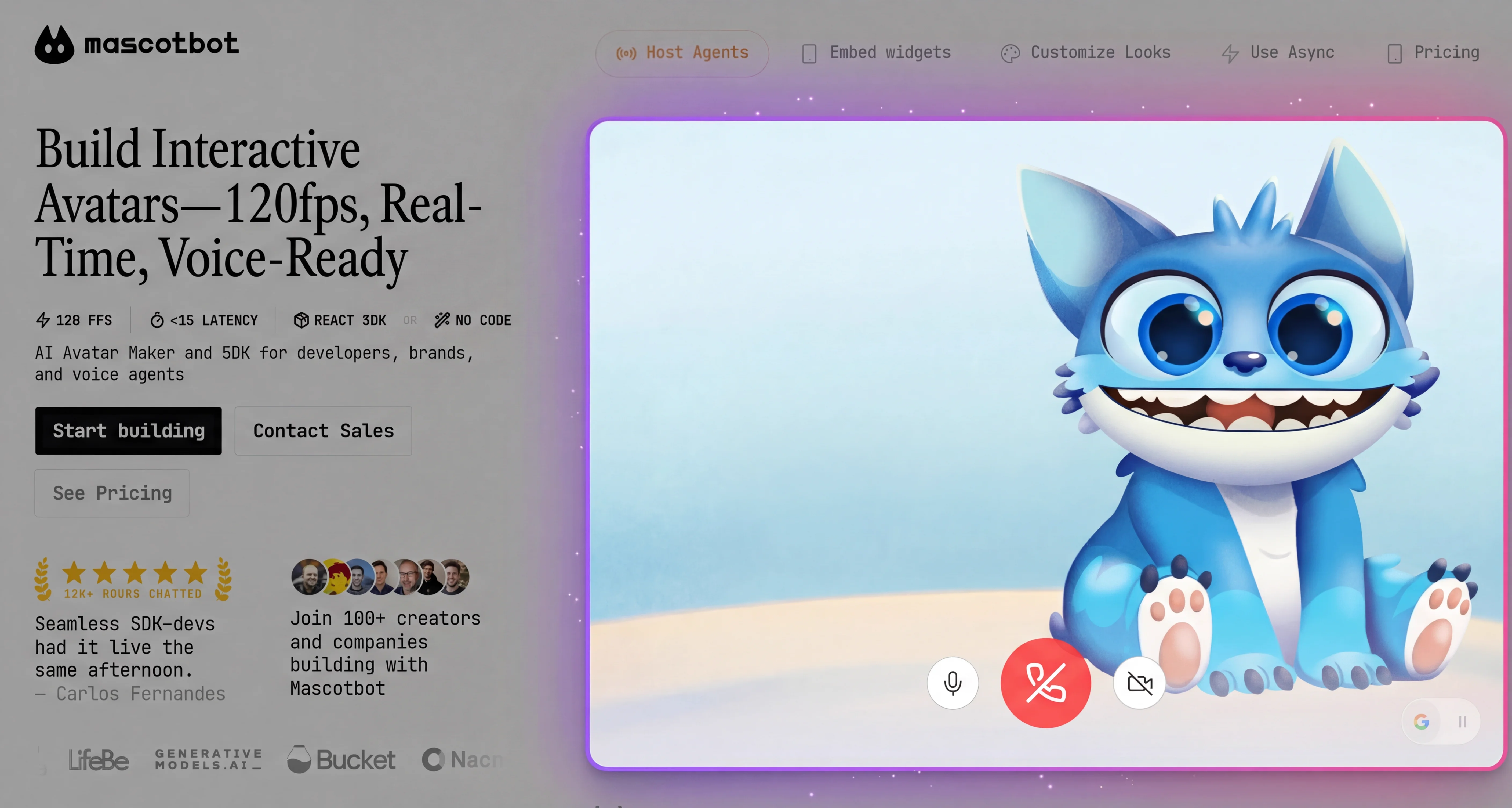
Async streaming TTS + on-device lip-sync queue — type or chat, stream PCM, and the 2D character lip-syncs in real time. Clone and run in minutes.
For the conversational ElevenLabs build, see our ElevenLabs Avatar tutorial.
Advanced -- Custom Viseme Mapping for Unique Characters
The default config works for most characters, but brand mascots with exaggerated expressions or minimal designs benefit from tuning natural lip sync. Natural lip sync post-processes the raw viseme stream -- merging similar adjacent shapes and protecting the distinctive ones -- so the mouth blends sounds the way a real mouth does instead of snapping to every phoneme.
You pass the config to useMascotPlayback. The one rule that matters: it must be a stable reference -- a module-level constant or a useState/useMemo value. A fresh object literal on every render reinitializes the post-processor and breaks lip sync after the first audio chunk. This is the single most common integration bug.
// Smoother, lazier motion — minimal or realistic characters
const SUBTLE = {
  minVisemeInterval: 90,     // fewer, slower viseme changes
  mergeWindow: 120,          // merge more shapes together
  keyVisemePreference: 0.6,  // less mouth emphasis
  preserveSilence: true,
  similarityThreshold: 0.4,  // merge aggressively
  preserveCriticalVisemes: true,
} as const;

// Crisper articulation — education / language learning / cartoon mascots
const ARTICULATE = {
  minVisemeInterval: 40,     // faster transitions
  mergeWindow: 50,           // show more distinct shapes
  keyVisemePreference: 0.9,  // emphasize distinctive positions
  preserveSilence: true,
  similarityThreshold: 0.8,  // merge less
  preserveCriticalVisemes: true,
} as const;
const playback = useMascotPlayback({
enableNaturalLipSync: true,
naturalLipSyncConfig: ARTICULATE, // a STABLE reference
});Always keep preserveCriticalVisemes: true. The bilabial closures (/p/, /b/, /m/) are the shapes viewers notice most -- if the engine skips a mouth-close, lip sync looks broken even when everything else is correct. Start from the defaults and raise minVisemeInterval / mergeWindow for smoother motion, lower them for crisper articulation.
For expression on top of the mouth, the SDK drives a built-in stress emphasis input from the speech envelope -- you can push your own emphasis cues with playback.stress([{ offset: 0, stress: 1 }]). A gesture (a wave, a nod) is consumer-owned: declare it on <Mascot inputs={["gesture"]}> and fire it yourself via useMascotInputs().custom.gesture.fire?.(). The SDK never auto-fires gestures.
Common Issues and Solutions
Audio Delay -- Mouth Moves Out of Sync
Symptom: Lips lag behind audio by 200ms or more.
Cause: Almost always a custom audio graph rather than the SDK's pipeline. When you tap a played element or stream PCM, the capture point should be the playback point so the mouth cannot drift. If you build your own AudioContext, the default buffer size of 4096 samples adds ~93ms of latency.
Solution: Prefer createElementTap() (for self-playing providers) or createPCMStreamPlayer() (for raw PCM) so capture and playback stay aligned. If you must build your own context, request the interactive latency hint:
const audioContext = new AudioContext({
  sampleRate: 44100,
  latencyHint: "interactive",
});
Visemes Look Robotic -- No Smooth Transitions
Symptom: Mouth snaps between positions instead of flowing naturally.
Cause: Natural lip sync is off, the mergeWindow is too low, or the .riv file is missing interpolation between mouth states.
Solution: Enable enableNaturalLipSync: true and increase mergeWindow to 80-120ms for smoother blending. Verify that your .riv file uses Rive's blend states between mouth positions -- this is what produces smooth transitions at 120fps. And remember: naturalLipSyncConfig must be a stable reference, or the post-processor resets after the first chunk.
Lip Sync Stops on Mobile Safari
Symptom: Works on Chrome and Firefox. Breaks on iOS Safari.
Cause: Safari suspends AudioContext until the user interacts with the page. If you create the player or tap programmatically (e.g., after an await), it is born suspended and silently fails.
Solution: Create the tap or PCM player inside the click handler, before any await, so its AudioContext is born running:
<button onClick={() => {
  const player = createPCMStreamPlayer({ sampleRate: 24000 }); // created in the gesture
  setStream(player.outputStream);
  // ...then await your fetch
}}>Start</button>
Next Steps
Now that you understand how a lip sync API converts audio to mouth animation in real time, here are paths to explore:
-
Connect ElevenLabs voice AI -- Our ElevenLabs Avatar tutorial shows the full conversational integration with element-tap lip sync, voice selection, and dynamic variables.
-
Build a real-time avatar under 500ms -- The Real-Time AI Avatar guide covers end-to-end latency, OpenAI Realtime over WebRTC, and Gemini Live wiring.
-
Explore the full SDK -- The 2D Avatar SDK guide documents every component, hook, and configuration option.
-
Start from a quick start -- The Avatar SDK Quick Start gets your first talking avatar running in 10 minutes.
-
Go deeper into Rive animation -- The Rive Lip Sync Deep-Dive explains state machine design, custom blend states, and how to author your own mouth animation sequences.
Frequently Asked Questions
How does lip sync work?
Lip sync converts audio into synchronized mouth movements through a three-stage pipeline. First, audio analysis reads the waveform from a mic, a pre-made clip, or a tapped provider stream. Then, an inference engine maps the sound to one of a small set of standard mouth positions (visemes). Finally, the animation engine renders these shapes on the character at 60-120fps. The Mascotbot SDK uses a hybrid architecture: a licensed ML model is delivered from the Mascotbot edge on first load, then runs on-device -- so all three stages execute in the browser and the audio never round-trips to a server.
What is viseme mapping?
Viseme mapping is the process of translating phonemes (units of speech sound) into visemes (visual mouth positions). A small set of mouth shapes covers most speech because the relationship is many-to-one. For example, the phonemes /b/, /p/, and /m/ all map to the same closed-lips viseme because they produce identical mouth shapes. The Mascotbot SDK does this mapping for you, emitting one viseme id per 10ms frame that Rive renders as a mouth shape.
What is the best lip sync API?
The best lip sync API depends on your use case. For pre-rendered video dubbing, sync.so and VEED.io offer high-quality results. For real-time 2D character animation, Mascotbot delivers a licensed ML model from its edge that then runs on-device -- sub-10ms local overhead with Rive integration and no audio round-trip in the audio path. For enterprise video-to-video, HeyGen and D-ID are established options. Key factors: latency requirements, 2D vs. video, and pricing.
How to add lip sync to animation?
To add lip sync to a 2D animation, you need three things: an audio source (microphone, TTS, or a conversational provider), a viseme engine that converts audio to mouth positions, and an animation framework (like Rive) that renders those positions. The Mascotbot SDK handles the engine and Rive rendering: install @mascotbot/react, mount <MascotProvider apiKey> with a <Mascot src>, then feed audio via useProcessAudio (pre-made files) or useLipsyncStream (live audio) -- see the tutorial above.
Is there a free lip sync API?
Open-source solutions like lipsync-engine on GitHub provide browser-based lip sync with zero dependencies, though you trade production quality and support for zero cost. For video-based lip sync, VEED.io and sync.so offer limited free trials. Mascotbot is a commercial product with per-minute pricing (starts around $0.04/min) and a free tier -- the right choice depends on whether you need real-time 2D animation with production support, or a DIY starting point. See mascot.bot/pricing for plan details.